WELCOME TO SIGILGRAPH_
A non-linear modular DAW built for sonic exploration. Patch, route, and sequence freely on an infinite canvas.
THE MODULAR WORKBENCH
Sigilgraph AudioWorkbench is a modular DAW that does not enforce a transport or timeline to organize the songwriting process, although you can opt into Composer Mode if you want one. Instead, you are given an open canvas of virtual devices to patch, route, and sequence freely.
This guide walks you through the core concepts of the application: the Start Menu, building your first patch, the port design language, the Assets Manager, and how Projects group your work together.
THE APPLICATION HUB
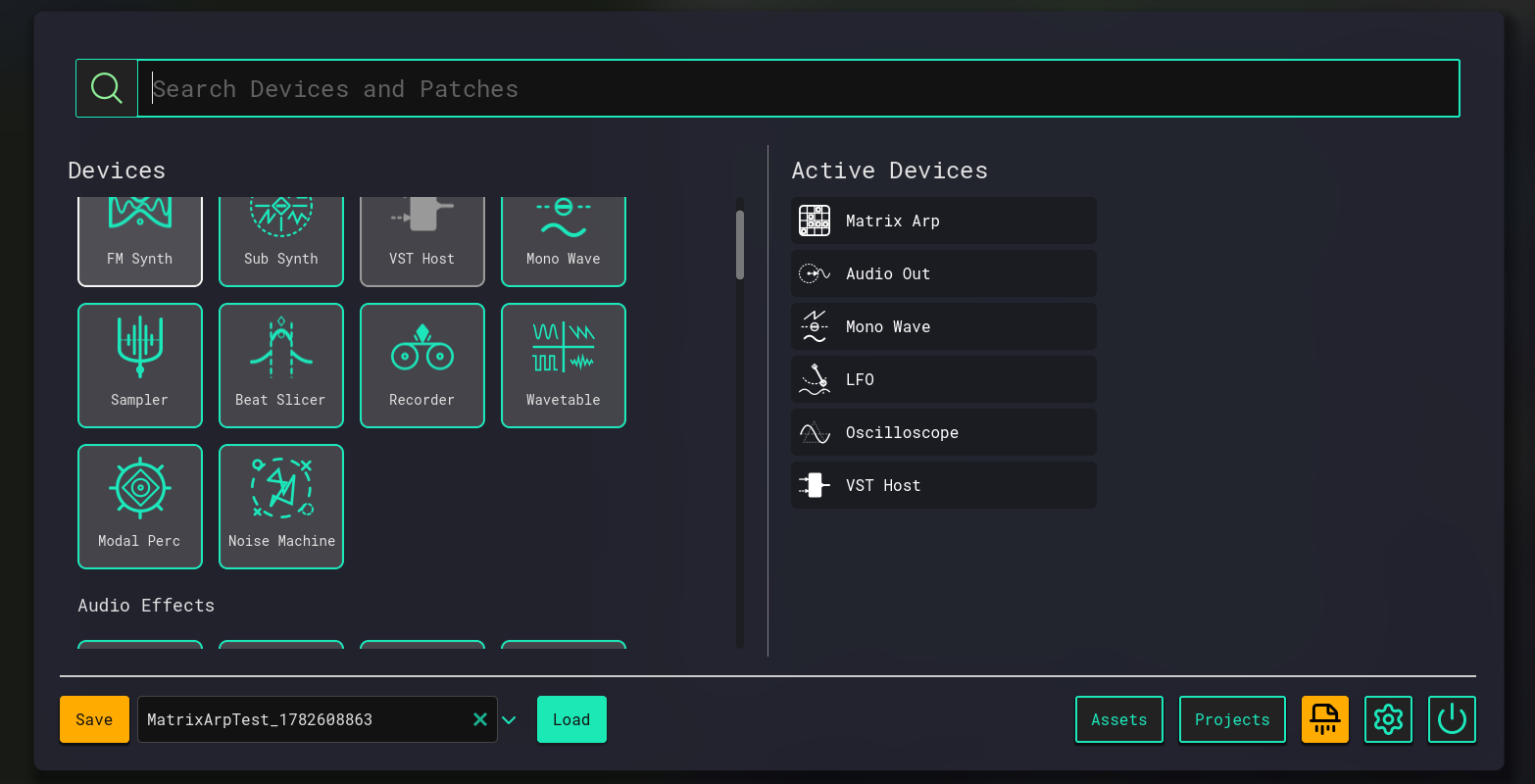
The Start Menu is the primary hub of the workbench. From here you can:
MINIMAL THREE-DEVICE SYNTHESIS
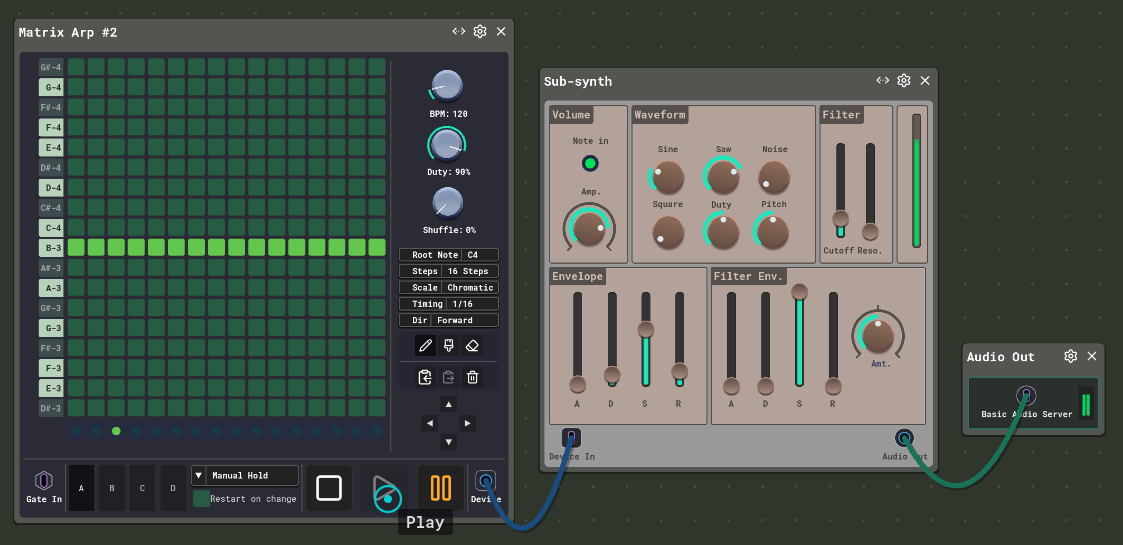
A minimal patch in Sigilgraph needs three devices. Together, they form a simple oscillator-voice routed to your audio output.
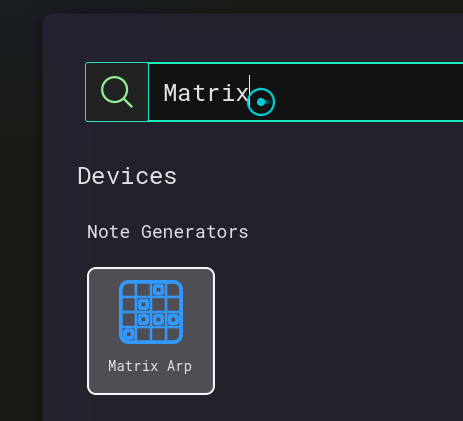
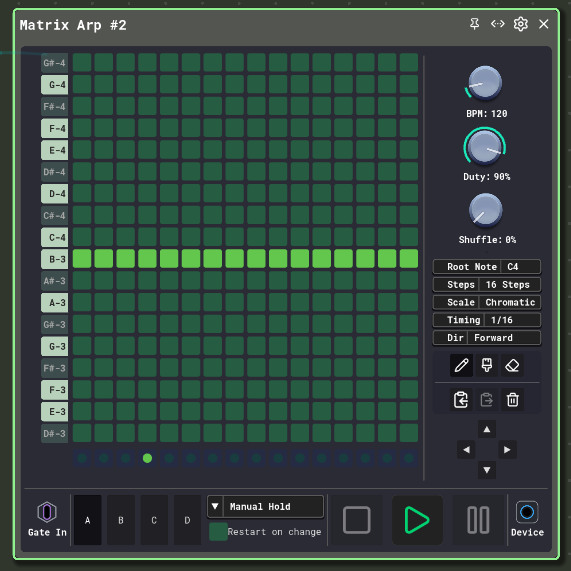
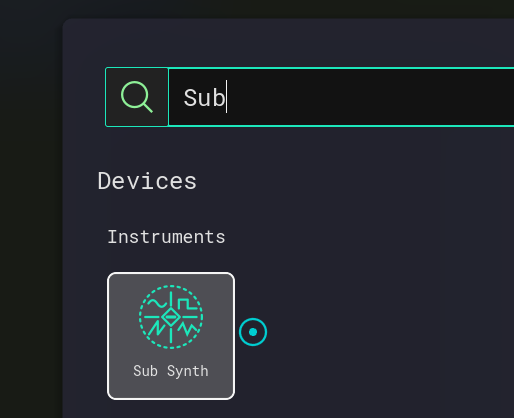
Open the Start Menu, search for Matrix Arp, and click the device card to spawn it on the workbench. The Matrix Arp will appear on the canvas.
Search for SubSynth in the Start Menu and add it the same way adjacent to the Matrix Arp.
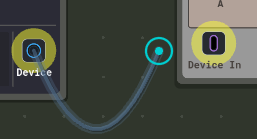
Press the output port and a wire will appear — then press the desired input on the other device. You can also reverse this: press the input and then the output. Valid connections are highlighted in yellow as you connect.
Connect: Matrix Arp Device → SubSynth Device In, then SubSynth Audio Out → Audio Out Audio In.
UNIFIED SIGNAL LANGUAGE
Sigilgraph uses a consistent port design language across all devices: three signal types, each available as Input or Output.


Out: Sends notes to note-receiving devices, functioning like a flexible MIDI stream.
In: Receives notes from generators like Drum Machine or Matrix Arp. Supports fan-in mixing.


Out: Emits audio signal; can split into infinite destinations (fan-out) without loss.
In: Receives audio. Automatic fan-in averaging prevents clipping. Use a Mixer for independent leveling.


Out: Sends CV to inputs, knobs, or sliders so LFOs and step sequencers can modulate any parameter.
In: Receives CV signals for unexposed parameters or signal transformation devices (e.g. Add-Mult).
SAMPLES, MIDI & PATCHES
The in-app hub for managing Samples, MIDI files, and Patches. It is split into two regions:
- Left panel: Lists all assets produced for the current project and the Global App Library. Use the search bar at the top to filter.
- Right / center: Shows details for the selected asset. For samples, you can preview them and crop them to create derivative cuts for use in Samplers, Slicers, or the Sample Track.
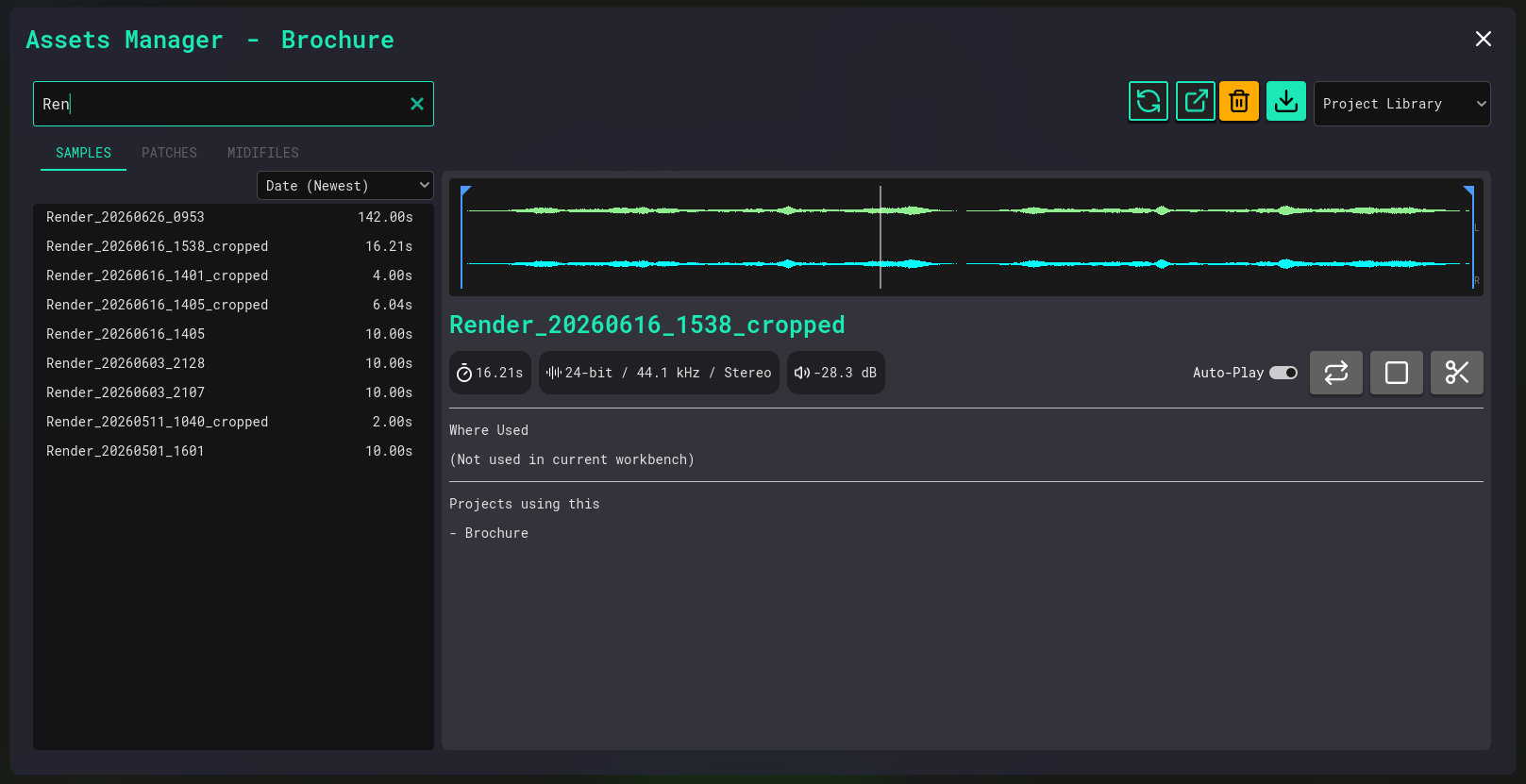
The action bar at the top of the detail view provides: Refresh, Delete, Import, and Navigate to path. Audio captured with the Recorder or Sample Track appears here automatically.
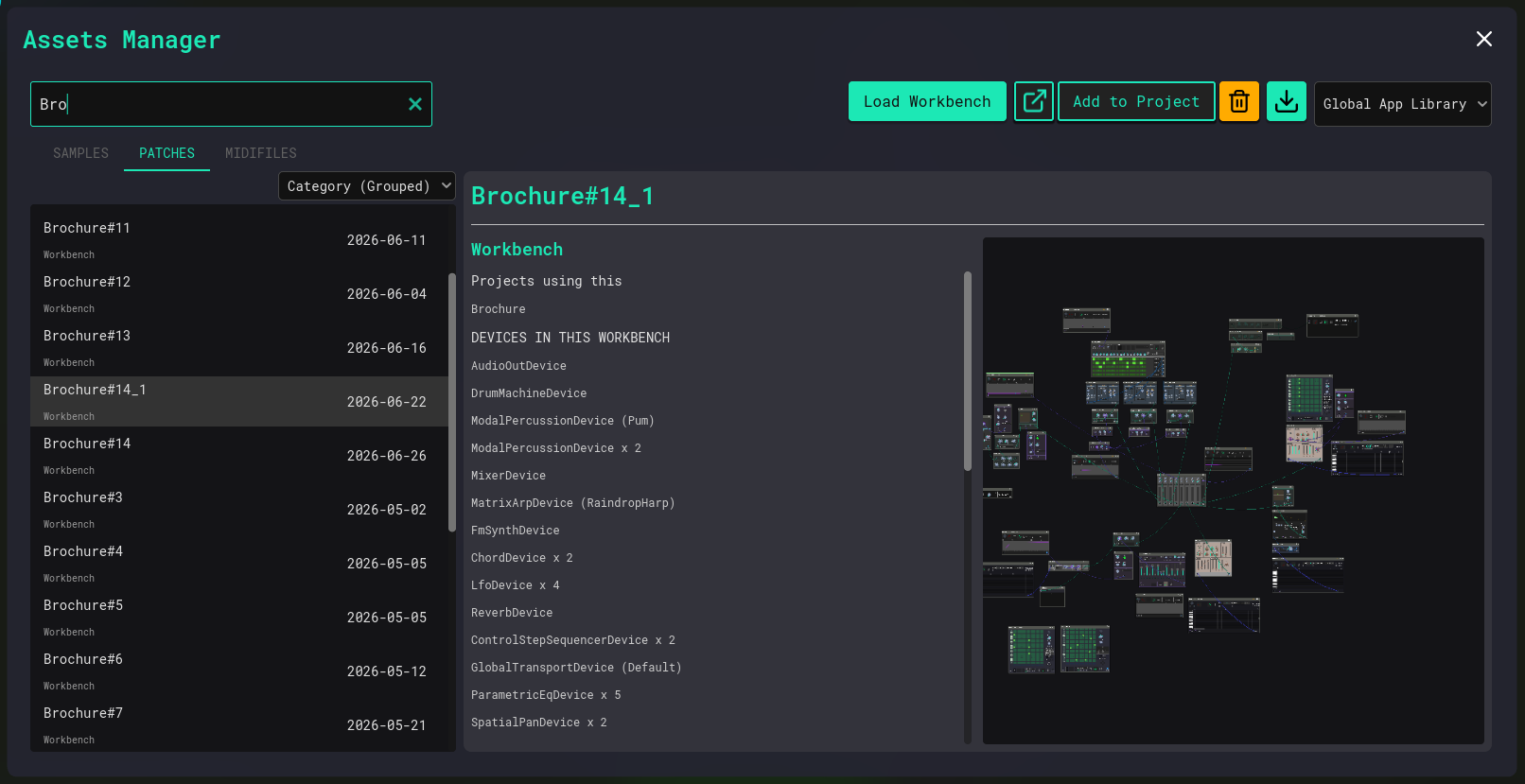
The Patches tab shows all patches stored in the current project or the Global App Library.
ORGANIZATION & ARCHIVING
A Project is a scope or grouping of assets. It is not a physical folder on disk. Instead, it is a label that lets you organize, export, and archive assets together for a song, album, or sound design study.
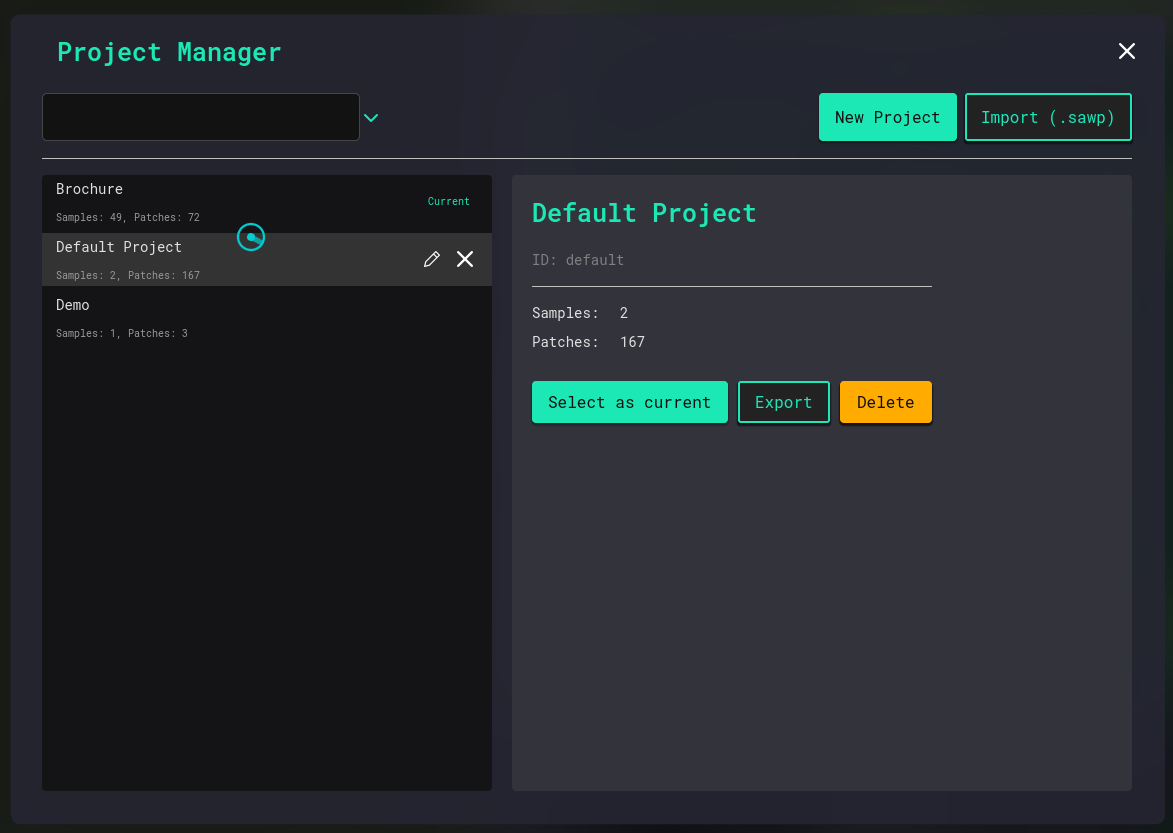
The Projects interface provides five core lifecycle actions:
.sawp Saves the project as a compressed .sawp file for sharing or backup. .sawp Imports a previously exported project bundle.